

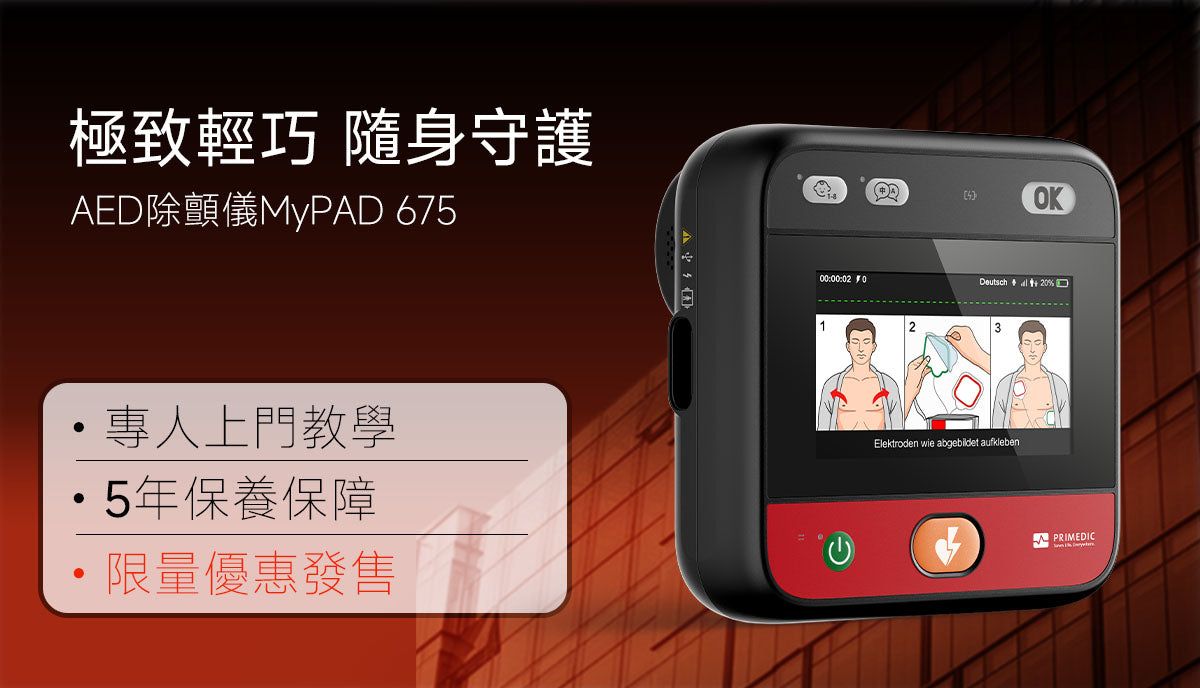
HeartSave myPAD device preparation
Chapter Six - Equipment Unpacking and Preparation Guide
This chapter describes how to properly unpack, install electrodes and batteries, and perform equipment self-tests to ensure the equipment can be used normally in emergency situations.
6.1 Unboxing
When you receive your package, check that the packaging is undamaged and that all components are included.
If the product is damaged, please contact your logistics provider, distributor, or authorized dealer. If necessary, please provide the damaged serial number and description.
6.2 Preparing electrodes for replacement
When replacing a new electrode, it must be reconnected to the device by following these steps.

Figure 7 Connecting electrodes to the device
Installation steps:
- Check the expiration date of the electrodes. Do not use expired electrodes.
- Insert the electrode plug into the socket (if not connected).
6.3 When replacing the battery, prepare the battery in advance.
The device is powered by a non-rechargeable or rechargeable lithium battery.
6.3.1 Battery Safety Information
Do not use damaged or over-discharged batteries on the device.
You should check the battery expiration date regularly.
Always ensure the battery is ready for the next use. If the battery is low (Battery 3C), replace the battery or charge it (Battery 3G).
Save the documents that came with the battery and perform a safety check and further potential checks according to the operating instructions.
6.3.2 Battery Removal

Figure 8 Removing the battery
When maintenance of the battery or SIM card is required, the battery must be removed by following these steps.
step:
- Place the device on a flat surface from top to bottom.
- Use a Phillips (PH1) screwdriver to remove the four screws from the battery.
- Gently pull the battery out of the slot using the direction of the arrow.
6.3.3 Remove the battery seal
The new battery and battery seal are for transport. Remove the yellow seal from the battery before use.
6.3.4 Battery Insertion

Figure 9 Battery Insertion
step:
- Place the device on a soft, flat surface from top to bottom.
- Insert the (new) battery into the device in the direction of the arrow until it reaches the end position as shown in the figure.
- Tighten the four screws with a Phillips (PH1) screwdriver until they are completely secured.
- After inserting the battery, the device will begin a self-test in 1 minute. Follow the voice prompts to complete the device's self-test.
- After the self-test is completed, the status display shows no "X", indicating that the device is ready for use.
After inserting the battery, the status display may show "X". > If the status display does not show "Normal", please follow these steps:
(1) Remove and reassemble the battery or switch on the device again.
(2) Repeat the equipment self-test.
6.3.5 Battery Capacity Alarm
When you hear "Battery low, please replace if possible," there will be at least 6 impacts. Energy can be transferred. However, please replace the battery or charge a rechargeable battery (3G battery only).
This voice prompt will also be repeated at the end of each CPR cycle if the battery is not charged or replaced.
6.3.6 Battery Storage
We recommend storing the device with the battery inserted and keeping the device in standby mode.
It is recommended that storage devices and batteries be kept at a temperature between 15°C, with an expected lifespan of 35°C.
6.3.7 Battery 3G Maintenance and Replacement
When the battery is removed from the device and not used for an extended period of time, we recommend that you charge it at least once a month to maintain better battery health.
6.3.8 Battery 3G Charging
We recommend charging the battery in the following situations:
- After each use
- When the charging indicator light flashes red
- When you hear the voice prompt, "Battery power is low. Replace if possible," please only use the provided charging adapter.
Connect the adapter to the charging socket shown in Figure 3. The indicator light on the upper front of the device will display green. The charging socket will be visible when the device is fully charged.
6.4 Self-test
The device status is displayed via a status indicator.


6.4.1 A self-test should be performed when the equipment is turned on.
When you press the power button to turn on the device, it will perform a quick self-test, checking all major functions and modules.
| Self-inspection category | Self-inspection content |
|---|---|
| When the device is turned on, a self-test should be performed. | Main control module, internal power supply module, electrodes, treatment module |
6.4.2 Battery insertion self-test
After the battery is installed, the device will perform a manual self-test 1 minute after installation.
| Self-inspection category | Self-inspection content |
|---|---|
| Battery insertion test included | Main control module, battery, internal power supply module, electrodes, treatment module, maximum value, energy charging/discharging, speaker, buttons, network module, Bluetooth module |
6.4.3 Regular automatic self-test
The device undergoes regular self-tests to ensure it is always ready for use.
| Self-inspection category | Self-inspection content |
|---|---|
| Daily/Weekly* | Main control module, battery, internal power supply module, electrodes, treatment module, network module |
| Each month (the first day of each month) | Main control module, battery, internal power module, electrodes, treatment module, network module, 50J charge/discharge, speaker, Bluetooth module, temperature control module. |
| Half a year (the first day of January and July) | Main control module, battery, internal power module, electrodes, treatment module, network module, maximum power, energy charging and discharging, speaker, Bluetooth module, temperature. |
* The daily/weekly self-test time is set to 5:00 AM on the test day's time zone. The self-test time can be configured to a different time of day. To change the daily or weekly self-test time, please contact your reseller or Metrax.
**The monthly and semi-annual self-inspection dates can be modified. To change the dates, please contact your reseller or Metrax.
Note: This device cannot perform automatic time zone updates. To change the time zone settings, please contact your dealer or Metrax.
Note: No regular maintenance or safety testing is required; the equipment is fully equipped with periodic self-testing functions. Users are advised to comply with local regulations.
6.4.4 Internal monitoring of equipment status
The device continuously performs internal monitoring for functionality and safety. If a fatal error or malfunction occurs, the status display will show an "X" and a warning tone will be emitted periodically.
Please check the device status display periodically.
Note: In some cases, this "X" may be temporary or reversible. In these cases, you can use the battery to perform a self-test to fix the problem. If this helps, you can continue using the device. If it doesn't, please contact our customer service department for assistance.
6.5 Language Button
To select the language for the voice prompts, press the language button during operation. This device supports up to six languages. Pressing the language button will briefly announce the current language via voice. For LCD/touch display devices, a language indicator will also be displayed on the screen.


Leave a comment
This site is protected by hCaptcha and the hCaptcha Privacy Policy and Terms of Service apply.